App guide
Evidence and the Acquire menu
Everything Querywright has retained about a site, by kind, each item dated. New evidence starts from the Acquire menu, and every action that uses allowance says so before anything runs.
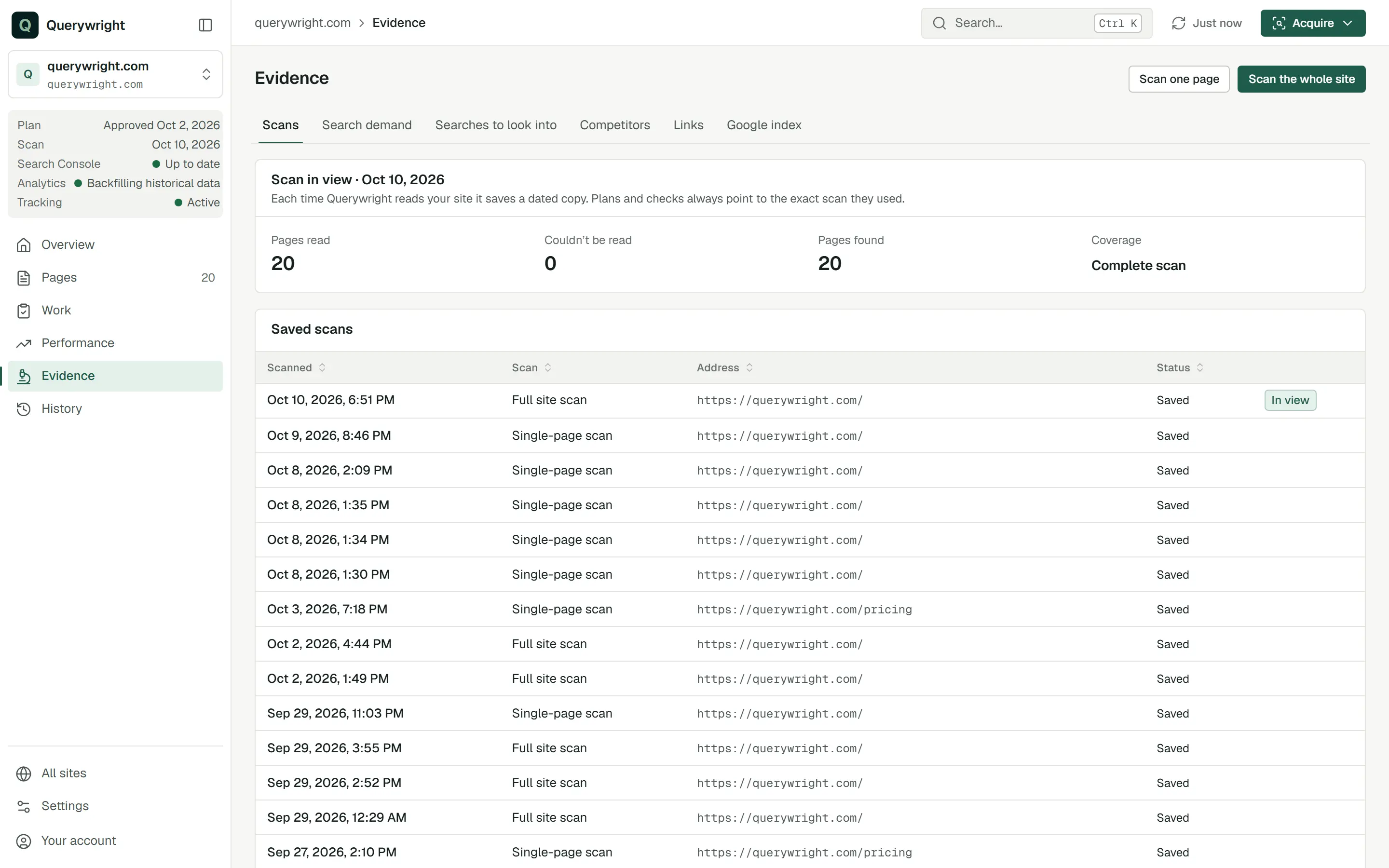
Evidence is the fifth section in the rail, at /sites/example.com/evidence; press g then e to jump to it. Six tabs sit under the title: Scans · Search demand · Searches to look into · Competitors · Links · Google index. Scan one page and Scan the whole site at the top right start a new scan.
Evidence is what Querywright observed or measured. It is not a plan and not your AI’s opinion. See Evidence vs your AI’s judgment.
The Acquire menu
Acquire sits at the right of the top bar on every screen of a site. It opens a menu titled “New evidence for this site”. Opening the menu starts nothing; each item opens a tool where you choose what to gather.
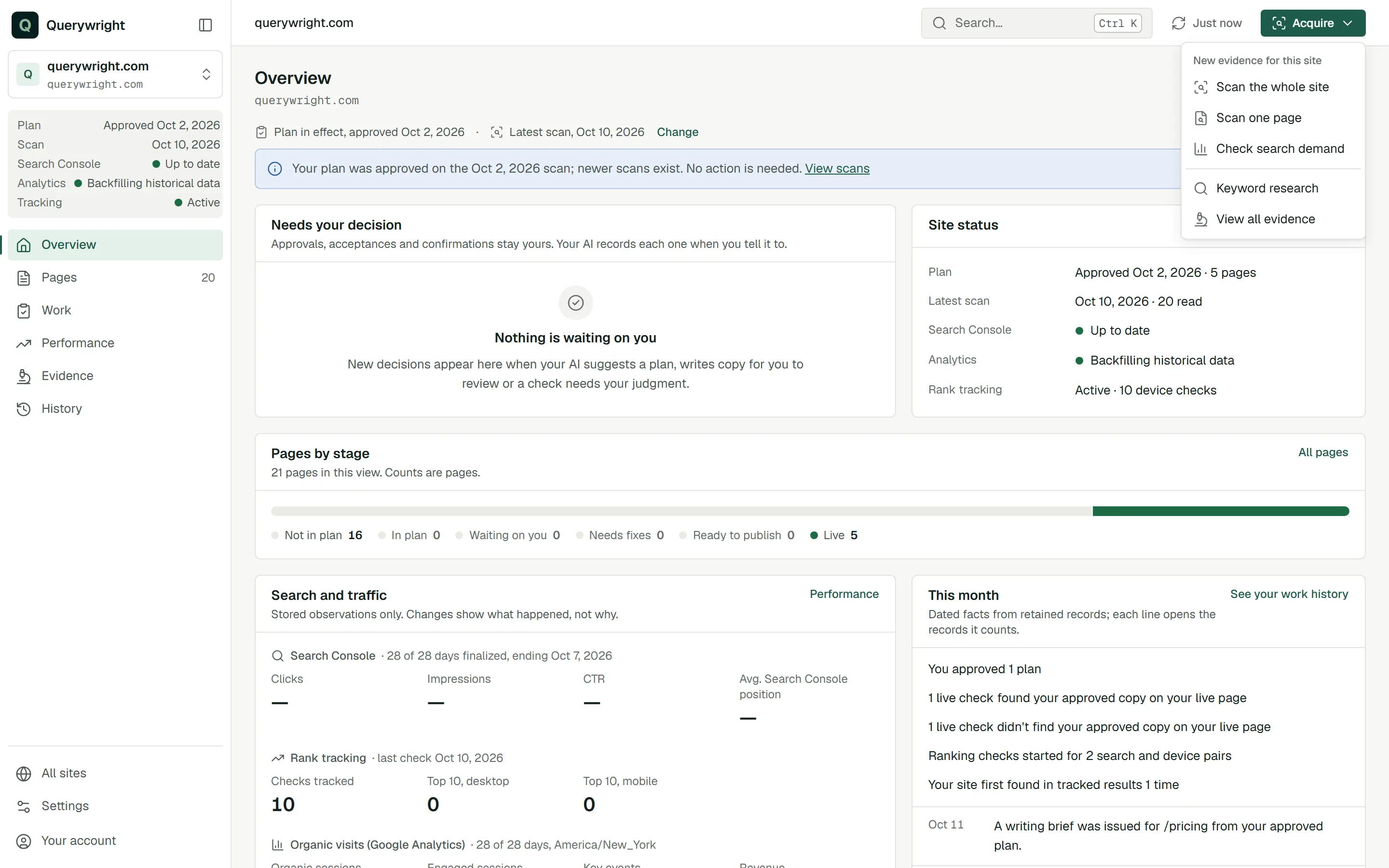
| Item | What it gathers | Uses included allowance? |
|---|---|---|
| Scan the whole site | A dated scan of your public pages. You choose how many pages to read, up to 200. | It counts toward your Sites researched allowance the first time a scan of that site succeeds in your billing period. It uses no data-provider allowance. |
| Scan one page | A dated scan of one page. | The same rule: it counts toward Sites researched if it is the site’s first successful scan in the billing period. |
| Check search demand | Monthly search counts from Google Ads for the searches you enter. | Yes. “Only these searches” uses Keyword measurements. “These searches plus related ideas” uses Keyword exploration requests. |
| Keyword research | A keyword research session in Explore, Focus or Local mode. | Yes. “Each run states the allowance it uses before anything is requested.” |
| View all evidence | Nothing new. It opens Evidence. | No. |
When a scan’s form opens it repeats the site rule, for example “If this is the first successful scan of this site in your billing period, it counts toward your N sites.” Your remaining allowances are in Settings › Usage. See Allowances.
Scans
- Latest scan (or Scan in view, when you chose another scan under Change) with its date: Pages read, Couldn’t be read, Pages found and Coverage. Coverage reads “Complete scan”, “Partial scan”, “Partial, stopped at N pages” or “Finished with gaps”.
- Saved scans: every saved scan with Scanned, Scan, Address and Status. “In view” marks the scan the App is showing. Select a date to open the saved scan.
“Each time Querywright reads your site it saves a dated copy. Plans and checks always point to the exact scan they used.” See Site and page scans.
Search demand
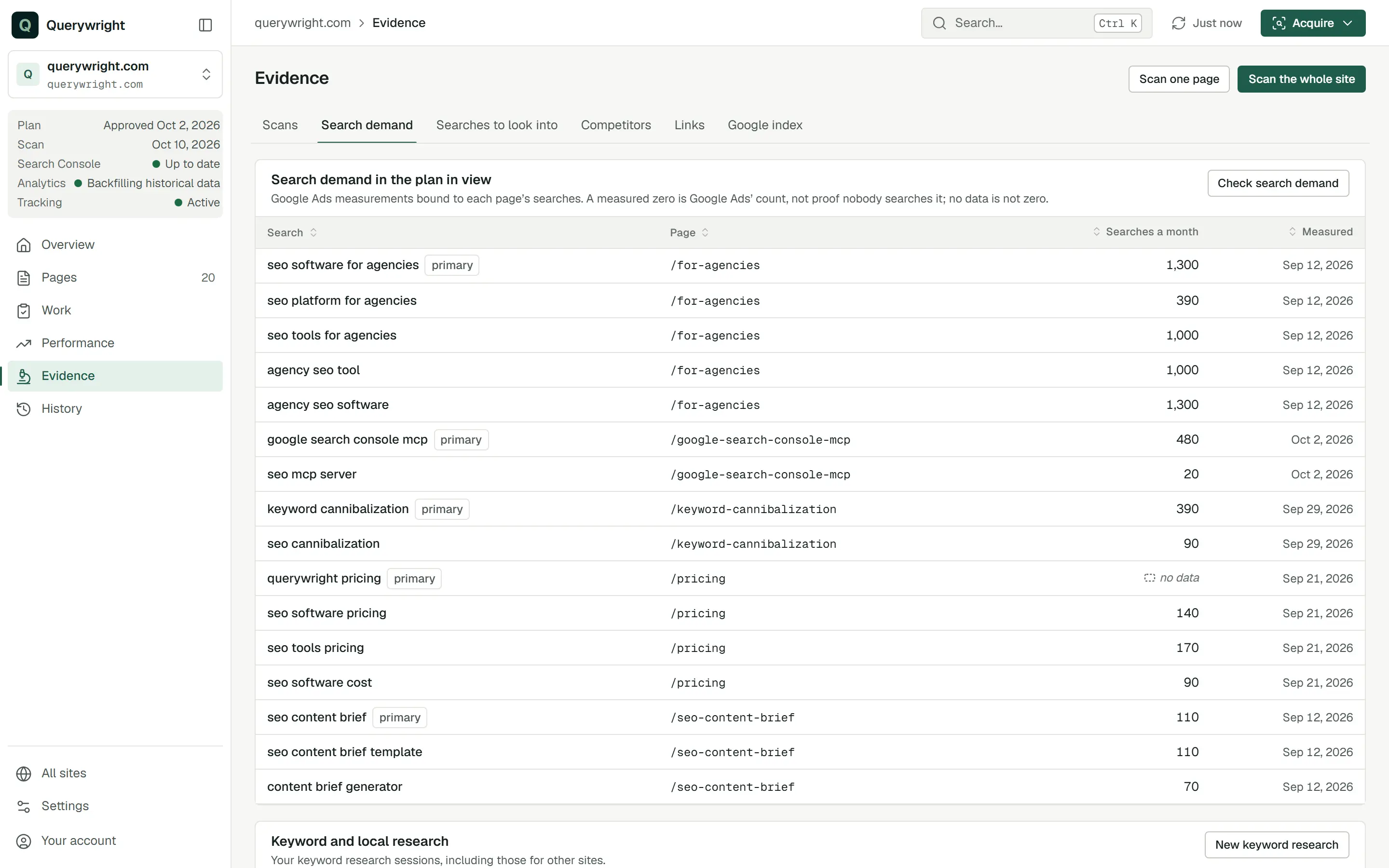
- Search demand in the plan in view: each search a plan assigns, with its Page, Searches a month and the date Measured. “A measured zero is Google Ads’ count, not proof nobody searches it; no data is not zero.” Check search demand opens the demand tool.
- Keyword and local research: your keyword research sessions, including those for other sites. New keyword research starts one.
See Search demand, Keyword research and Measured zero vs no data.
Searches to look into
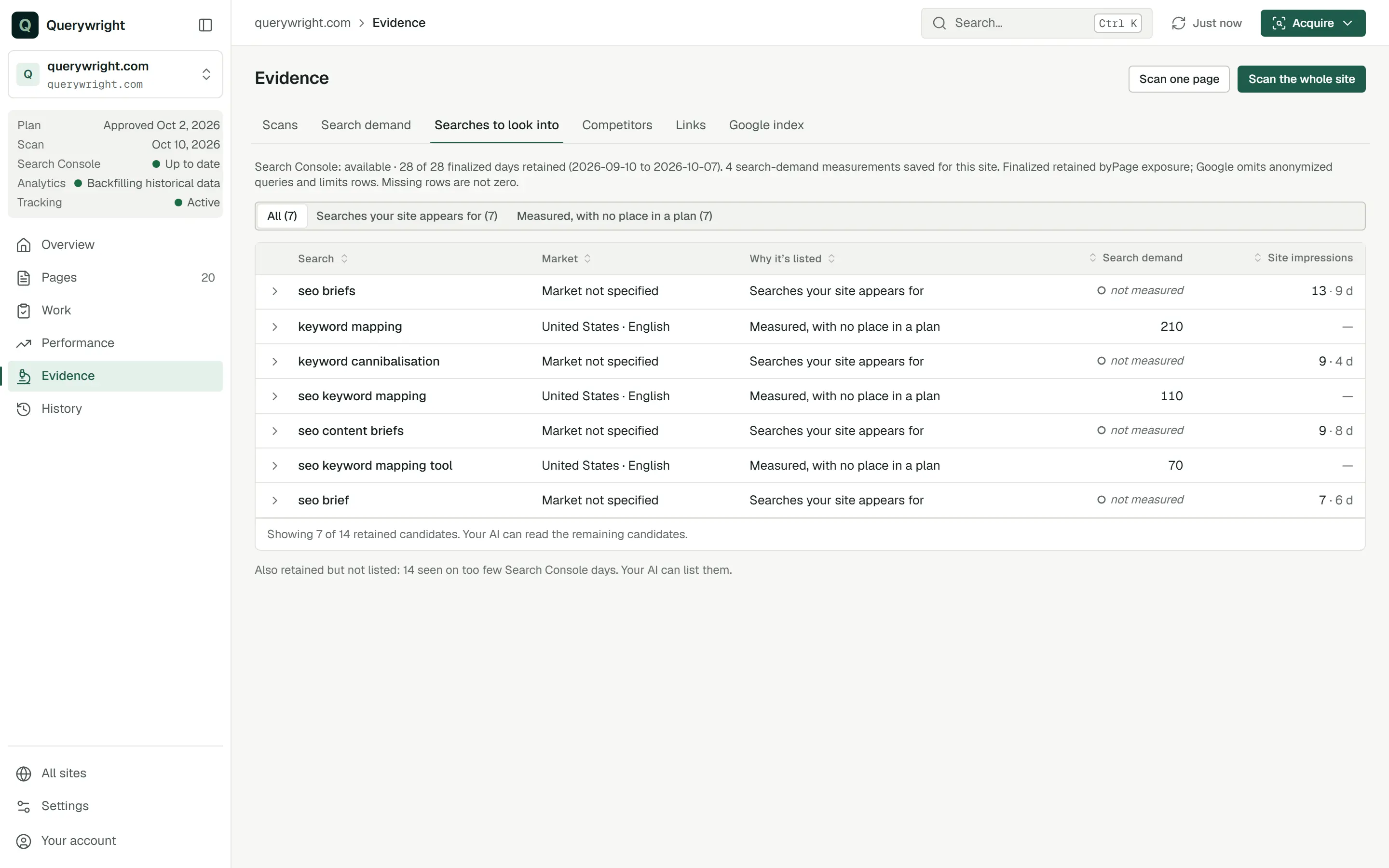
Candidate searches drawn from what Querywright has already retained. Nothing here measures, approves or assigns a page; your AI weighs the candidates and you decide.
A line at the top states the coverage behind the list: how many finalized Search Console days are retained and how many search-demand measurements are saved for the site. Buttons filter by lane:
| Lane | Why a search is listed |
|---|---|
| New evidence since you set it aside | You set the search aside, or an approved plan listed it as a non-target, and new evidence has been retained since. Your earlier direction still stands until you say otherwise. |
| Searches your site appears for | Your site appeared for it on several finalized Search Console days. Impressions are exposure, not demand. |
| Measured, with no place in a plan | A positive demand measurement is retained for the site, and no approved plan placed the search. |
| Competitor gaps | A competitor ranks for it in the provider’s national data and nothing retained about your site mentions it. The provider’s volume is an estimate, so an exact measurement comes before any plan. |
The table shows Search, Market, Why it’s listed, Search demand and Site impressions. Expand a row for the reasons, the measurement and its date, and what you said before if you set the search aside. Site impressions are exposure, not search demand. When nothing qualifies it says “Nothing in your current evidence stands out”.
Which searches would you look into for example.com, using only the evidence we already have? Say which ones you’d want measured before recommending anything.Competitors
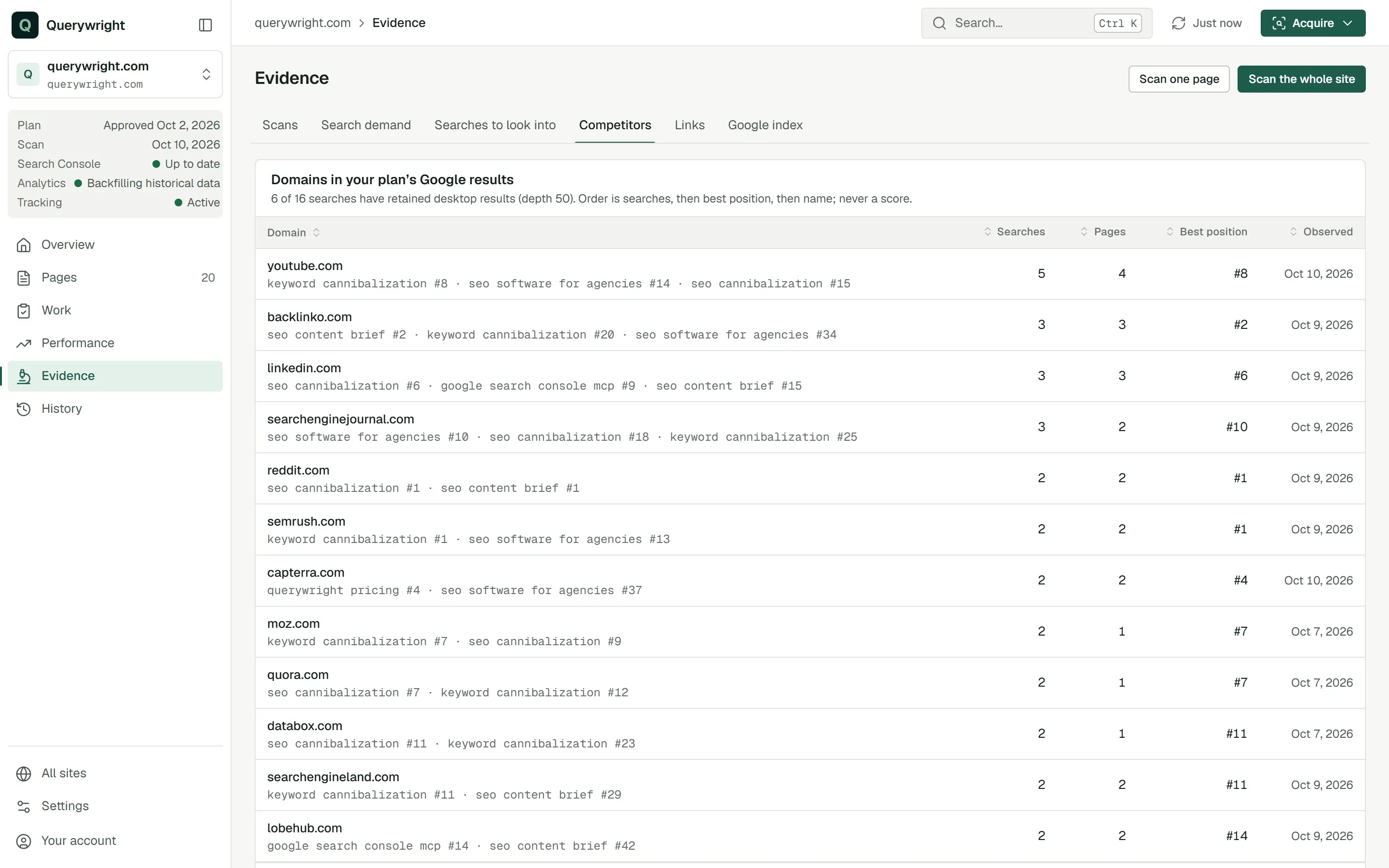
- Domains in your plan’s Google results: each domain found in the retained desktop results for your plan’s searches, with Searches, Pages, Best position and when it was Observed. The order is by searches, then best position, then name; “never a score.”
- Searches: each search with its market, the number of organic rows, whether a local pack was shown, and the date.
- Next steps, with actor tags.
This tab reads results already retained and uses no allowance. Without a plan it says “No plan in effect”. Fresh Google results for a search come through your AI, which asks first because they use Manual Google results. See Competitors and Google results.
Links
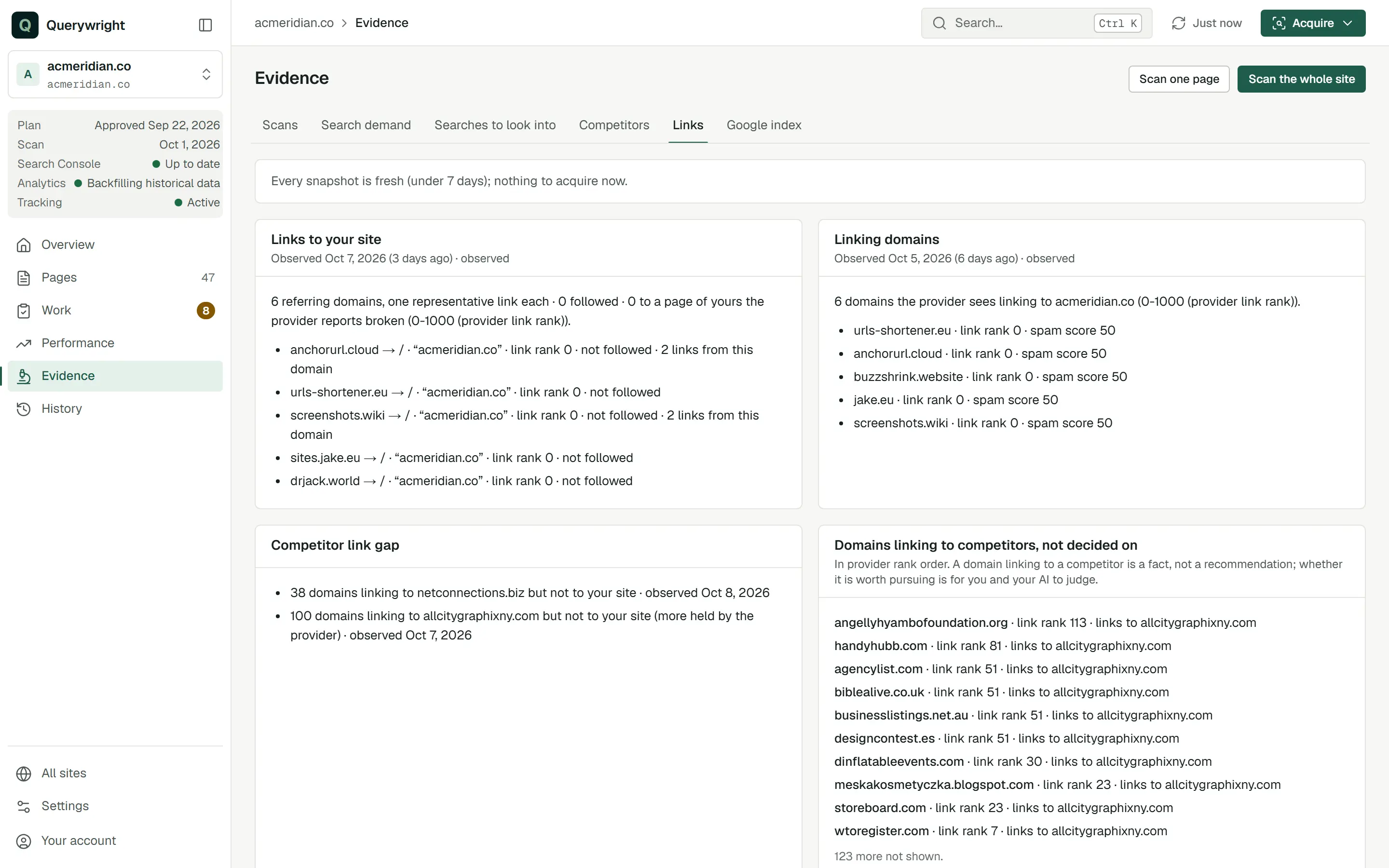
- A bar stating what new link snapshots would use: “New link snapshots use N of your included Site Intelligence units … Nothing is acquired until you confirm.” Investigate opens a confirm step, “Acquire link snapshots?”, with Confirm and acquire. When every snapshot is under 7 days old the bar says there is nothing to acquire now.
- Dated snapshots, such as “Links to your site” and “Linking domains”, each with how many days old it is.
- “Competitor link gap”, “Link sources you pursue”, “Link sources you are not pursuing”, “Domains linking to competitors, not decided on” and “Links to pages the provider reports broken”, where there is anything to list.
A domain linking to a competitor is a fact, not a recommendation. Whether a link source is worth pursuing is for you and your AI to judge, and Querywright contacts no one. See Links.
Google index
“Google’s index reports for pages in your plan”: each page with Google’s newest dated URL Inspection report, in Google’s words. It is not a live test, and it is separate from Querywright’s live-page check. Select a page to open its Evidence tab.
Your AI can ask Google about a page, or check your sitemaps, through your Search Console connection. That uses no allowance unit; Google allows at most 100 inspections per site per day. See Search Console.
Labels on this screen
| Label | Meaning | What to do |
|---|---|---|
| Partial scan | The scan stopped before reading every page it found. | Ask your AI whether a fuller scan matters for the pages you care about. |
| Finished with gaps | The scan finished, but not as a complete scan. | Read its counts, then ask your AI whether to scan again. |
| In view | The scan the App is showing now. | Use Change in the context bar to look at another. |
| measured | Beside a 0: Google Ads reported zero. That is their count, not proof nobody searches. | Treat it as a measurement, not as missing data. |
| no data | The provider answered without a value. | Do not read it as zero. |
| not measured | Nobody has measured this search yet. | Ask your AI to measure it if it matters; it asks before using allowance. |
| Investigate | Acquires new snapshots using Site Intelligence units. | Read the units it states, then confirm or cancel. |
Last updated