Working with your AI
Working with your AI
You do the work in a conversation with Claude or ChatGPT. Querywright gives your AI the evidence and keeps the record; the App shows you both.
Working with Querywright means talking to your AI in plain language about a site you added. Name the site and say what you want: a scan, ideas for what to target, a plan for a page, copy, a check, or how your pages are doing. Your AI reads the saved evidence through Querywright, asks before it uses included allowance or records a decision, and explains what it recommends and why. You do not need to know how Querywright works inside, and you never need to type an ID.
What to ask
- Name the site, such as example.com. Querywright keeps one record of work per site, and your AI starts from it.
- Say what you want and where to stop. “Scan the site and tell me what each page is for; don’t measure anything yet” is a complete request.
- Name the market when demand matters: the country, region or city, and the language.
- Say what you decide in plain words. “I approve this plan exactly as shown” or “Don’t pursue that search” is what your AI records.
Prompts you can copy has a prompt for each common job.
What Querywright records
| Record | When it is made | Where it shows |
|---|---|---|
| Scan | When you or your AI scan the site or a page | Evidence › Scans, Pages |
| Search demand | When you say yes to measuring searches | Evidence › Search demand, the page’s target searches |
| Google results, competitors, links | When you say yes to fetching them | The page’s Evidence tab, Evidence › Competitors, Evidence › Links |
| Suggested plan | When your AI suggests one | Work › Suggested plans |
| Plan | When you approve a suggested plan | Work › Plan in effect, All plans |
| Not pursuing | When you tell your AI you are not pursuing a search, page or plan | Work › Not pursuing |
| Writing brief | When your AI asks for one for a page in your plan | The page’s journey strip, History |
| Approved copy | When you accept an exact version of the copy | The page’s journey strip, History |
| Check | When your AI checks the copy you accepted | The page status, History |
| Live comparison | When a later scan is compared with the copy you approved | The page status, History |
| Rankings, Search Console, Analytics | Weekly rank checks after you start tracking; daily imports after you connect Google | Performance |
Each record is dated and kept. A newer one never overwrites an older one; earlier plans, versions and checks stay in History.
What happens without you asking
- Your AI reads saved work freely. Reading scans, measurements, plans, copy, checks and history uses no allowance and needs no question.
- Imports keep running. Once you connect Search Console or Google Analytics, Querywright imports each finished day on its own.
- Weekly rank checks keep running after you start rank tracking, until the page leaves your plan.
Anything that uses included allowance, and every decision, waits for you. See when your AI asks first.
Picking up where you left off
Start a new conversation and name the site. Your AI reads the site’s current work record first, then tells you what is done, what is outstanding and what it does not know, before it does anything new. Nothing needs saving between conversations: the plan in effect, what is waiting on you and each page’s stage come from the saved records. Claude and ChatGPT read the same records, so you can switch between them.
Pick up where we left off on example.com. Tell me what’s done, what’s outstanding, and what you don’t know, before you do anything new.To point your AI at one specific record, use Exact records in the App and Copy request, or Continue in your AI… on a page.
How your AI labels what it tells you
Your AI explains in this order: its recommendation, why, the evidence, and the decision it needs from you. Each statement belongs to one of four kinds, and your AI is required to say which.
| Kind | How your AI says it |
|---|---|
| A Querywright fact | What the scan observed, what a check found, what Google reported, with its date |
| A measurement | The number, its source (Google Ads), the market, the language and the date |
| Your AI’s own reading | “My read is…”: a recommendation, a likely cause, whether a search is winnable, which page is the best owner |
| Unknown | What the evidence does not show |
Where it shows in the App
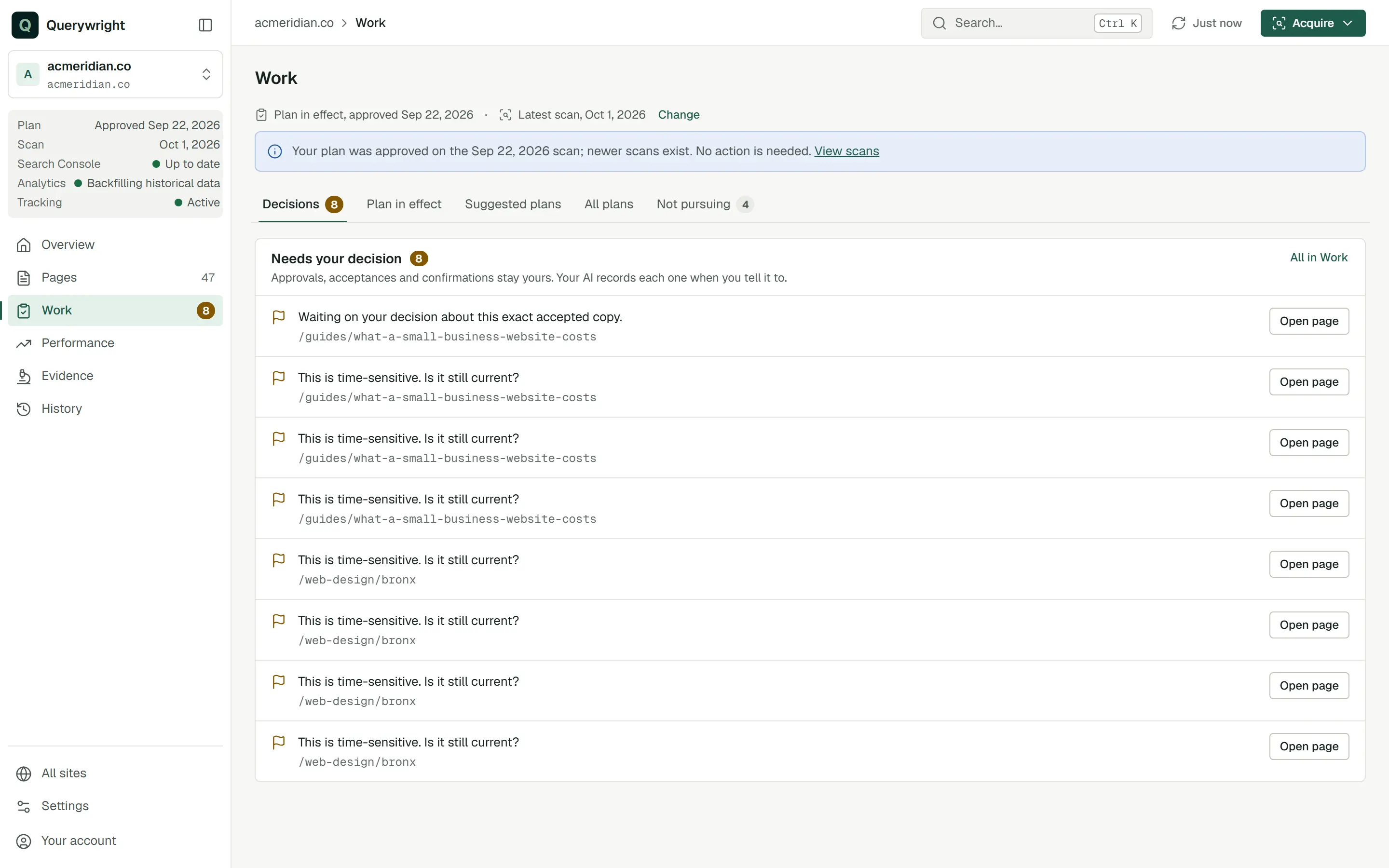
Decisions your AI is waiting on appear on the site’s Overview under “Needs your decision” and in Work › Decisions. Press Refresh after a conversation to see the newest records.
Does it use allowance?
Talking to your AI and reading saved work use none. Scanning a new site, measuring demand, keyword research, fresh Google results, links snapshots, rendered page reads, page experience reads and rank tracking use included allowances, and your AI asks first. See allowances.
Last updated