Getting started
Your first site scan
The starter instruction asks your AI to scan your site, find measured search opportunities and recommend which page should own each one, then stop for your approval.
Before you start
- Setup is complete: your plan is active, your site is added and Claude or ChatGPT is connected. See getting started.
- Querywright is turned on in the conversation you will use (Claude, ChatGPT).
- You have the starter instruction. It is on the Ready step of setup, on the site’s Overview under “Start your first scan” until the first scan completes, and behind Starter prompt in Settings → Account.
Research https://example.com with Querywright. Identify measured search opportunities and recommend which existing page should own each opportunity before proposing copy changes. Show the evidence and ask for my approval before creating a generation brief.Steps
- Send the instruction. Paste it into the conversation, with your own site’s address in place of example.com if you are typing it yourself, and send it.
- Your AI scans the site. Asking for the scan is your go-ahead for it. Querywright reads up to 200 public pages and saves what it observed on each one as a dated scan. If this is the first successful scan of this site in your billing period, it counts toward your plan’s sites; scanning the same site again in the same period does not count again.
- Your AI tells you what it found. It explains what the site and its pages appear to be about, which observations support that reading, and what the scan could not establish, such as pages that were linked but not read.
- Your AI asks before measuring search demand. It names the searches it wants measured, the market and the language, and asks to use your keyword measurements. Say yes, narrow the list, change the market, or say no.
- Your AI shows the numbers. Each measurement comes back with its source and date. A measured zero is reported as Google Ads’ count of zero; a search Google Ads returned nothing for is reported as no data, not as zero. See measured zero vs no data.
- Your AI recommends which page should own each opportunity. It names the page, the target search and the evidence, says what is its own reasoning, and asks for your approval before it creates a writing brief.
What you’ll see in the App
Press Refresh in the top bar, or reload, to read the newest records.
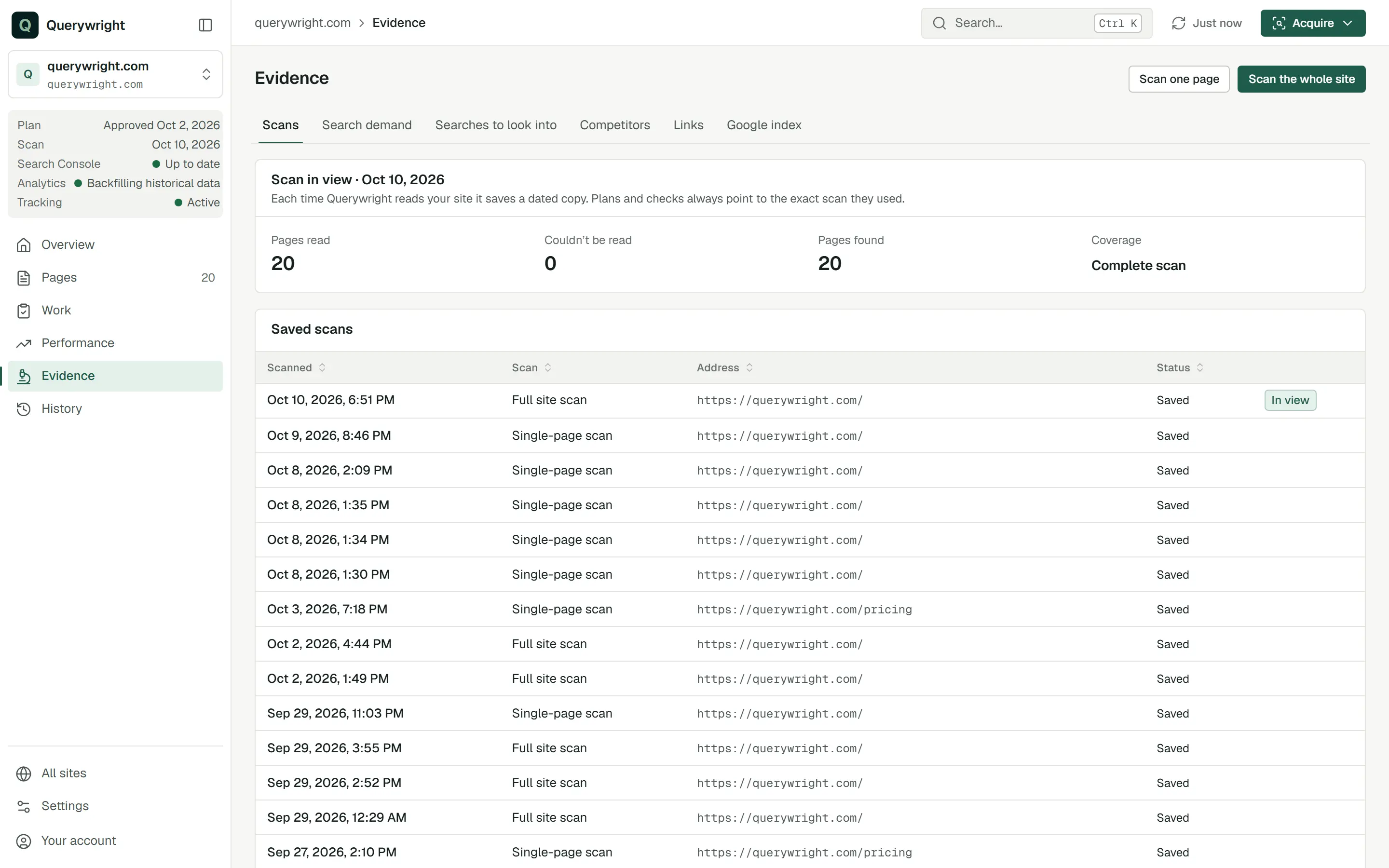
- Evidence › Scans lists the saved scan with its date. “Each time Querywright reads your site it saves a dated copy. Plans and checks always point to the exact scan they used.”
- Overview replaces “Start your first scan” with the site’s state. Site status shows the latest scan’s date, how many pages were read and how many couldn’t be read, and says “Partial scan” if it stopped short.
- Pages lists every page the scan found, with its status. Before a plan exists, pages read “Not in your plan”, which is normal for pages like About or Contact.
- Evidence › Search demand shows the measurements once a plan assigns searches to pages.
- Work › Suggested plans shows the plan your AI suggested, and Overview › Needs your decision lists it until you decide.
Scanning from the App instead
You can also start a scan yourself. Open the Acquire menu in the top bar and choose Scan the whole site (or Scan one page). The scan screen sets Pages to read (up to 200), says when the scan would count toward your sites, and asks you to keep the page open until it finishes. When it finishes, its status reads “Complete scan”, “Scan finished with gaps” or “Partial scan”, and Blocked by site rules counts the pages the site’s own rules asked Querywright not to read. The result is the same saved scan your AI would have made, and your AI can use it in the next conversation.
If something goes wrong
- Your AI says it has no Querywright tools. Turn the connector or app on for that conversation, or start a new one. See connector problems.
- The scan finished with gaps. Some pages could not be read. Ask your AI which ones and why before relying on the scan; a bounded scan is never a complete audit.
- Pages are counted under Blocked by site rules. The site’s own rules asked Querywright not to read those pages, and Querywright respects them.
- “The scan was interrupted. Please scan again.” The scan stopped before it finished, for example because the scan screen was closed while a large site was being read in steps. Nothing was saved; scan again.
- Your plan’s sites for this period are used. A new site cannot be scanned until the next billing period; a site already scanned this period can be scanned again. See allowances.
Other messages are in common messages.
Last updated