Getting started
Getting started: account, plan and first site
One setup in four steps: Plan, Site, Connect AI and Ready. Your progress is saved with your account, so you can leave and come back.
Before you start
- An email address you can open, for the confirmation link. Public signup is open.
- A public website you want to work on, such as
https://example.com. - Claude or ChatGPT, on a plan that can add a custom connector (Claude) or a developer-mode app (ChatGPT). Querywright does not include a model: your AI does the reasoning and the writing, so you bring your own Claude or ChatGPT subscription.
Steps
- Create your account. Go to app.querywright.com/sign-up, enter your email and a password of at least 12 characters, and press Create account. The App shows “Check your email”. Open the link in the confirmation email; no subscription has been started at this point.
- Sign in. At app.querywright.com/sign-in, sign in with the same email and password. The page also offers Forgot password? and Resend confirmation email. Setup opens on the step you reached.
- Choose your plan. On the Plan step, read the plan card and press Continue to Checkout. Payment happens in Stripe Checkout, which shows billing details and any applicable taxes. Coming back from Checkout does not switch access on by itself: the App shows “Waiting for verified payment confirmation…” and checks for up to 30 seconds. Saved evidence and history stay readable while billing is pending.
- Add your first site. On the Site step, enter the address in Public website and press Add site. Querywright saves the site’s home address, not a particular page. Use the address your site actually serves:
wwwand non-www,httpandhttpsare different sites. Adding a site does not claim ownership of its domain, and other accounts can independently research the same public site. - Connect your AI. On the Connect AI step, copy the Connection address and follow Connect Claude or Connect ChatGPT. When the connection is complete, press Refresh; it is listed as “Connection 1” with the date it was connected.
- Copy the starter instruction. The Ready step reads “Ready for your first scan” and shows Your first instruction, written for your site. Press Copy starter instruction, then Open your site.
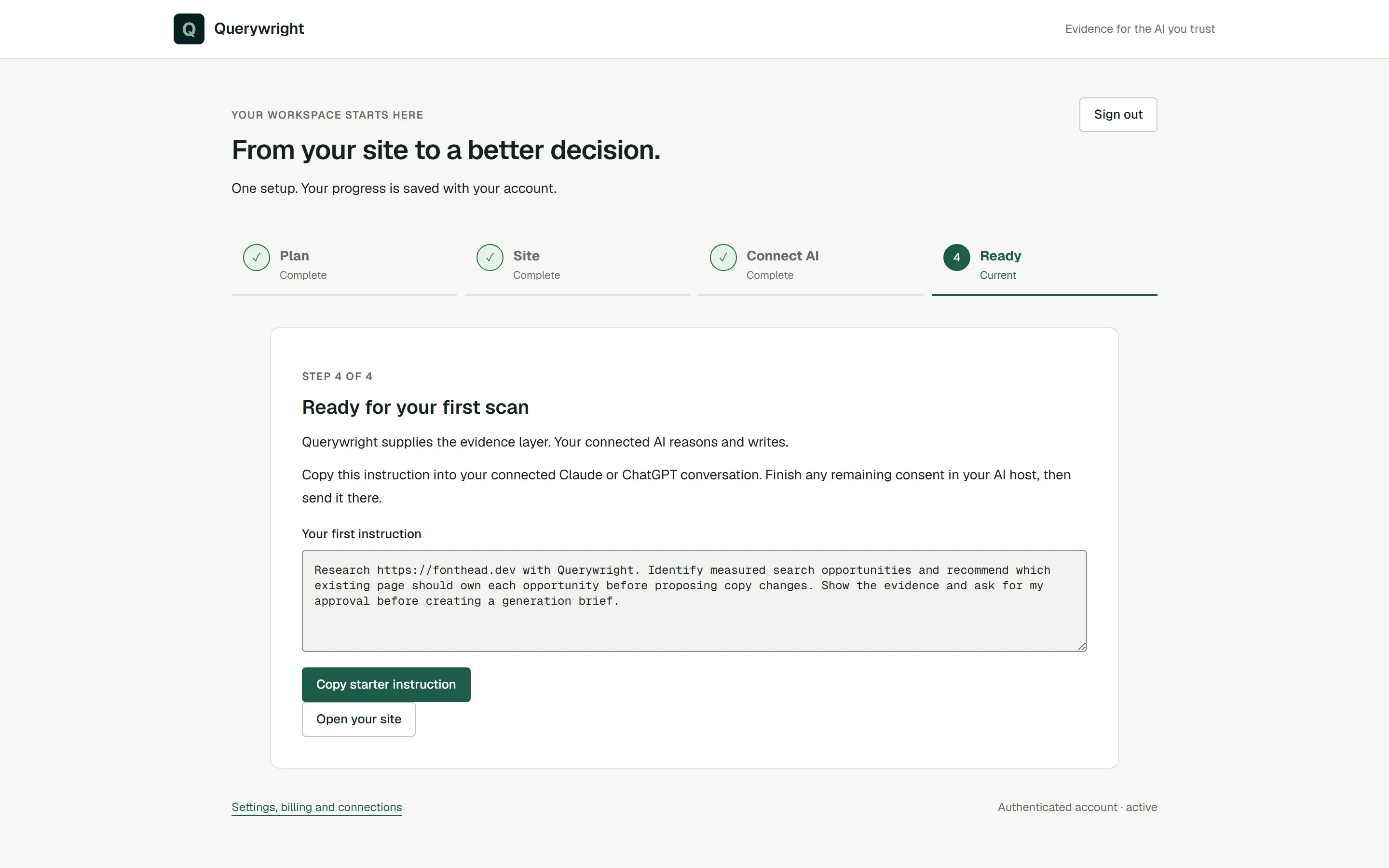
For a site at example.com, the instruction reads:
Research https://example.com with Querywright. Identify measured search opportunities and recommend which existing page should own each opportunity before proposing copy changes. Show the evidence and ask for my approval before creating a generation brief.Paste it into a Claude or ChatGPT conversation with Querywright turned on, and send it. Your first site scan walks through what happens next.
What you’ll see in the App
Open your site takes you to the site’s Overview. Until the first scan completes, Overview shows “Start your first scan” with the same starter instruction and its copy button. To find the instruction again later, open Settings → Account and press Starter prompt.
The navigation rail on the left lists the six sections of a site (Overview, Pages, Work, Performance, Evidence and History), with All sites and Settings at the bottom. Understand the App explains each part of the screen.
Your plan’s price and terms are on the pricing page and in your subscription. To add more sites later, see sites.
If something goes wrong
- “This confirmation link is invalid or expired.” Use the newest confirmation email, or request a new one with Resend confirmation email on the sign-in page. If you already confirmed, sign in.
- “Sign-in failed. Check your email and password, confirm your email, then try again.” Confirm your email first; a new account cannot sign in before it is confirmed. Use Forgot password? if you need a new password.
- “Payment confirmation is taking longer than expected.” Press Check subscription status. If you did not finish paying, resume Checkout from the Plan step.
- “Checkout could not be opened. Your subscription has not been activated.” Try again from the Plan step.
- The connection is not listed after Refresh. Start the connection again from Claude or ChatGPT, not from the App. See connector problems.
Other messages are listed in common messages.
Last updated