Getting started
Understand the App
The App is where you see what your AI and Querywright have done for a site and what is waiting on you. The work itself happens in your conversation; nothing in the App approves anything.
The navigation rail
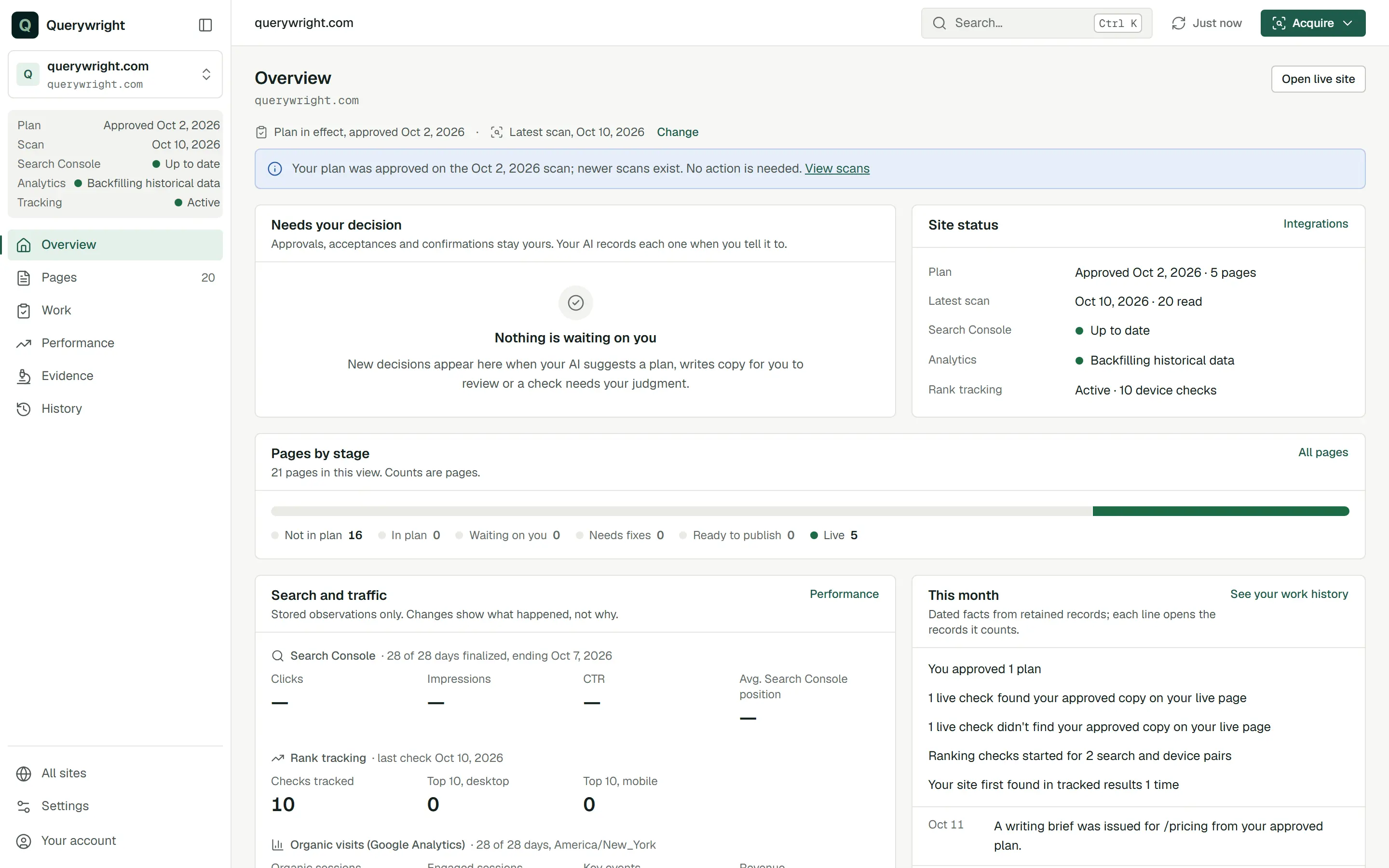
The rail on the left is the same on every screen of a site. From top to bottom:
- The site switcher names the site you are looking at. Open it to find another site (“Find a site…”), to go to All sites, or to Add a site. Switching keeps you in the same section.
- The site status strip shows the site’s plan (“Approved” with a date, or “None in effect”), its latest scan date, whether Search Console and Analytics are connected, and whether rank tracking is “Active” or “Not started”.
- The six sections of the site: Overview, Pages, Work, Performance, Evidence and History. Work carries a count of the decisions waiting on you; Pages carries the number of pages found in the scan.
- All sites and Settings, then your account menu with Account settings, Billing, Connected AI and Sign out.
On a wide screen the rail shows labels; Collapse navigation shrinks it to icons, and on a medium screen it shows icons only. On a phone it is a sheet you open from the top bar.
| Section | What it holds | Shortcut |
|---|---|---|
| Overview | What needs your decision, the site’s status, pages by stage, search and traffic, and this month’s changes | g then o |
| Pages | Every page and where its work stands, with a page detail for each | g then p |
| Work | Decisions, Plan in effect, Suggested plans, All plans and Not pursuing | g then w |
| Performance | Overview, Rankings, Search Console, Analytics, Local and Page experience | g then f |
| Evidence | Scans, Search demand, Searches to look into, Competitors, Links and Google index | g then e |
| History | What was done and observed, by date, and every saved record | g then h |
Settings belongs to your account rather than to one site. Its sections are Account, Sites, Billing, Usage, Google Search Console, Google Analytics, Connected AI and Legal.
The top bar
Breadcrumb
The breadcrumb names the site, the section and, on a page detail or a saved record, its title. Each earlier part is a link back. On a phone only the last part shows.
Search
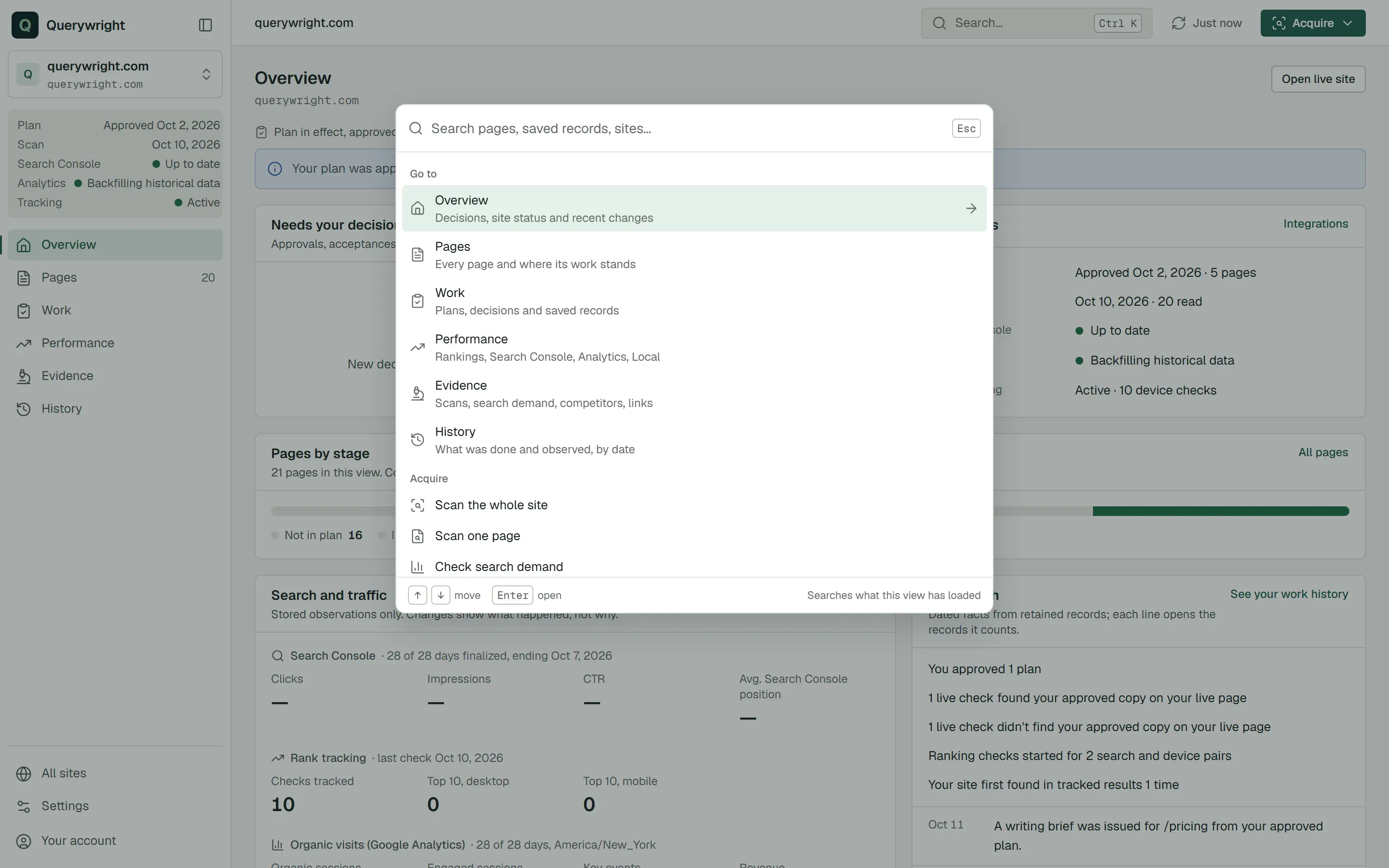
Press Search… or Ctrl K (⌘ K on a Mac), or type / when you are not in a text field. Search goes to the six sections, the pages and saved records loaded in this view, your other sites, the Acquire actions and the Settings sections. It “Searches what this view has loaded”; when nothing matches, it says “Nothing in this view matches. Your AI can search older records.”
Refresh
Refresh reads the site again and shows how long ago it last read it (“Just now”, “5 min ago”). Use it after your AI has done something in the conversation, so the App shows the new records.
Acquire
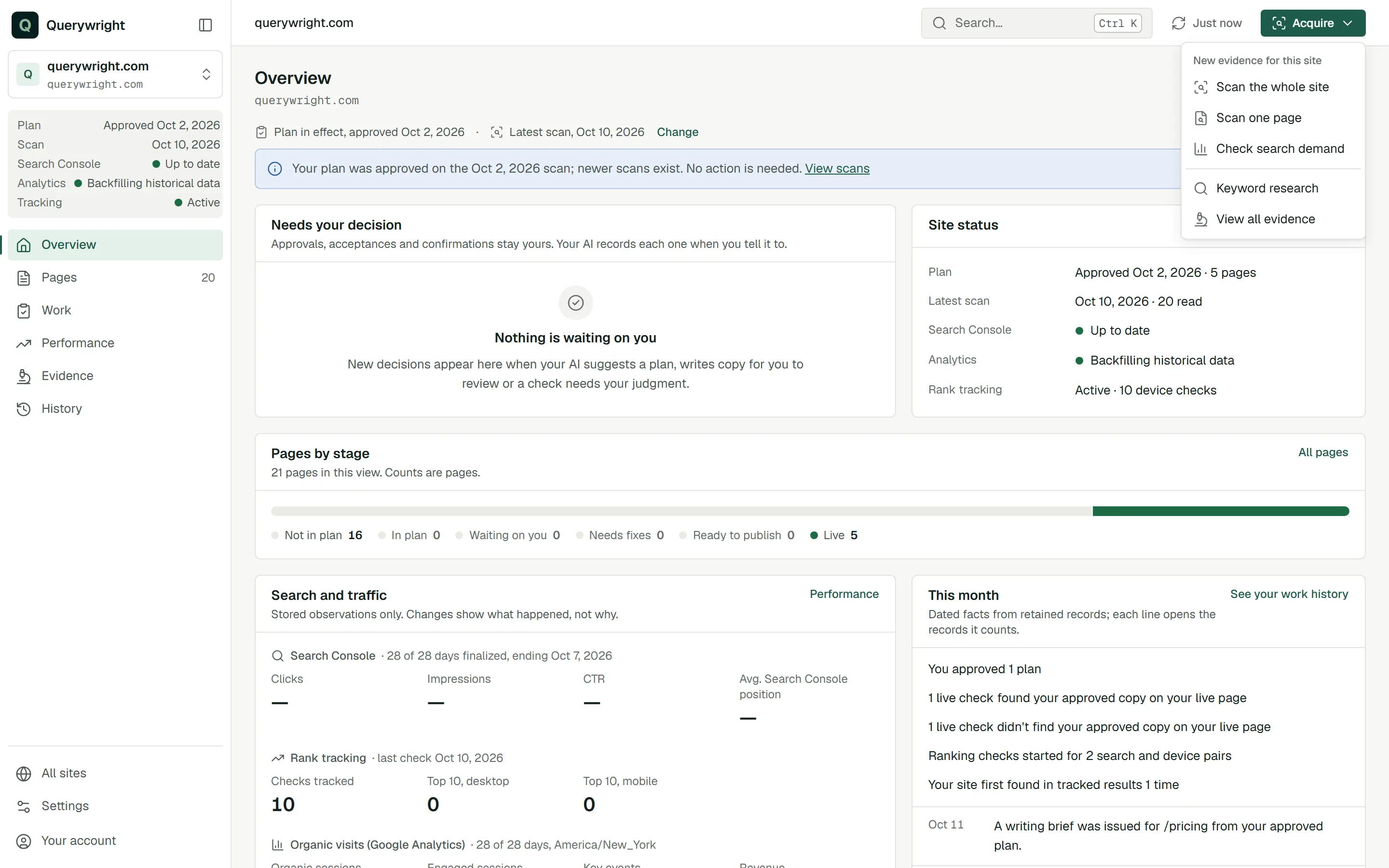
The green Acquire menu starts new evidence for the site in view. Under “New evidence for this site” it lists Scan the whole site, Scan one page and Check search demand, then Keyword research and View all evidence. Each opens its own screen, which states the allowance it uses before anything runs. Your AI can do the same work from the conversation; both save the same kind of record. See allowances.
The context line
Below each section’s title, a line says what the view is showing: “Plan in effect, approved” with a date, and “Latest scan” with a date. When a site has more than one saved plan or scan, Change lets you look at another one. “Choosing a scan or plan changes only what this view shows.” Nothing you approved changes, and Back to current returns to your current plan and latest scan.
Who acts on each step
Wherever the App lists next steps, each one carries a tag for who takes it: You, Your AI or Querywright. The list is “Valid steps in workflow order, with who takes each. Not a recommendation.” Decisions tagged You are made in your conversation: tell your AI, and it records your decision exactly as you state it.
Exact records and handoffs
- Exact records opens the saved records a view comes from, with a request you can copy into your AI (“To open these exact records, ask your AI:”, then Copy request).
- On a page detail, the next-action button offers Continue in your AI…, which shows instructions that include the exact saved versions your AI needs, with Copy handoff.
You never need to copy these to pick up later work: naming the site is enough. They are there when you want your AI to open one specific record. See working with your AI.
Keyboard shortcuts
| Keys | What they do |
|---|---|
Ctrl K or ⌘ K |
Open Search |
/ |
Open Search, when you are not typing in a field |
g then o, p, w, f, e or h |
Go to Overview, Pages, Work, Performance, Evidence or History for the site in view |
↑ ↓, then Enter |
Move through Search results and open one |
Esc |
Close Search or a dialog |
On a phone
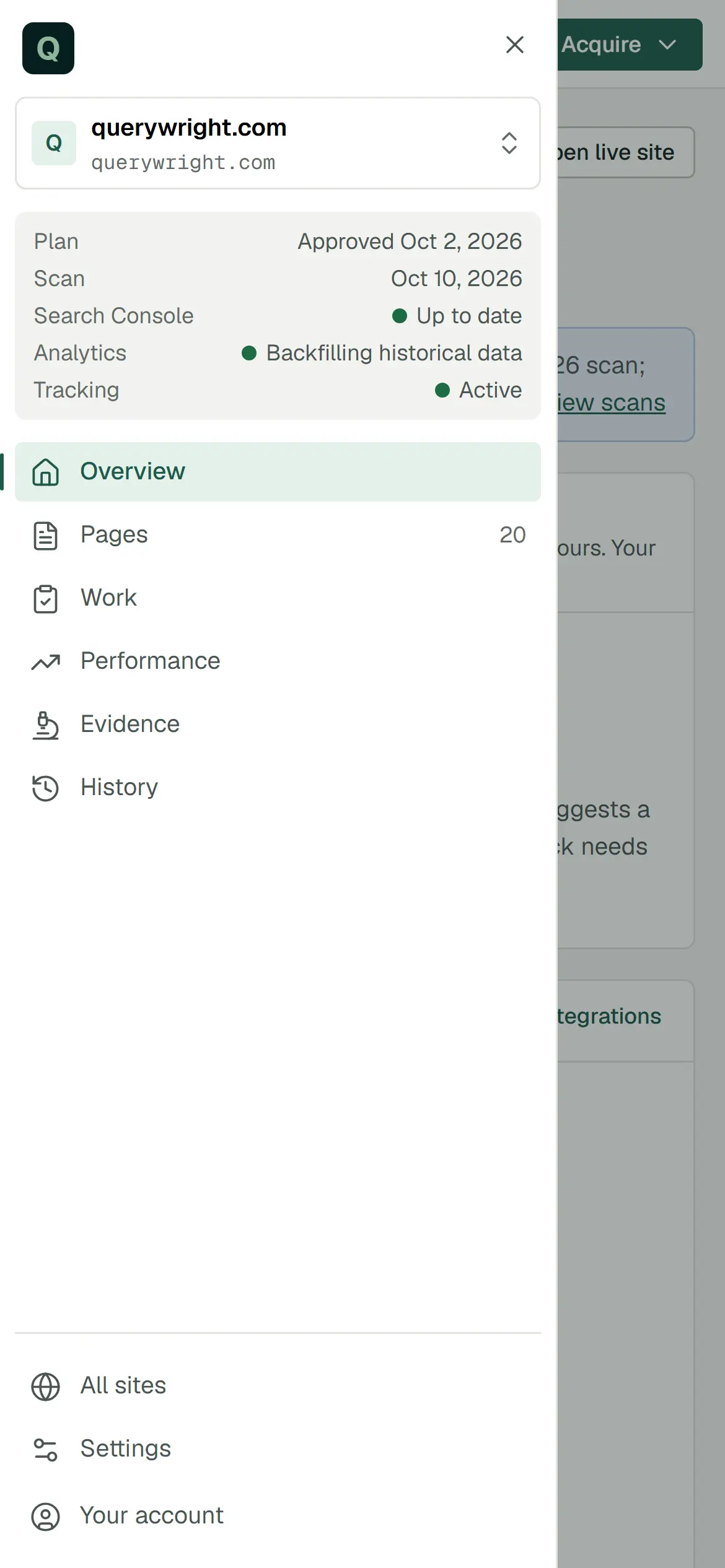
Press Open navigation (the menu button at the left of the top bar) to open the navigation sheet: the same site switcher, status strip, six sections, All sites, Settings and account menu. Search is the magnifier icon in the top bar, and the green Acquire button stays in the top bar.
Labels you’ll see
| Label | Meaning | What to do |
|---|---|---|
| Needs your decision | Approvals, acceptances and confirmations waiting on you, counted the same way your AI counts them | Open the item, then decide in your conversation |
| Nothing is waiting on you | No decision is open for this site | Nothing |
| No plan in effect | You have not approved a plan for this site | Review a suggested plan in Work, or ask your AI for one |
| No scan yet | The site has not been scanned | Send the starter instruction, or use Acquire › Scan the whole site |
| Not connected | Search Console or Google Analytics is not connected for this site | Connect it in Settings (Search Console, Analytics) |
| Not started (rank tracking) | Weekly rank checks have not been started for this site | Start them when your pages are live (rankings) |
| Reading… | The App is reading the site again | Wait a moment |
| This site could not be loaded. | The first read failed; nothing was changed | Press Retry |
| The newest read failed; the view below is from the previous read. | A later read failed; what you see is the earlier read | Press Retry |
Every status label the App shows is listed in labels you’ll see in the App.
Last updated